
Scrolling
The deflection sets the speed
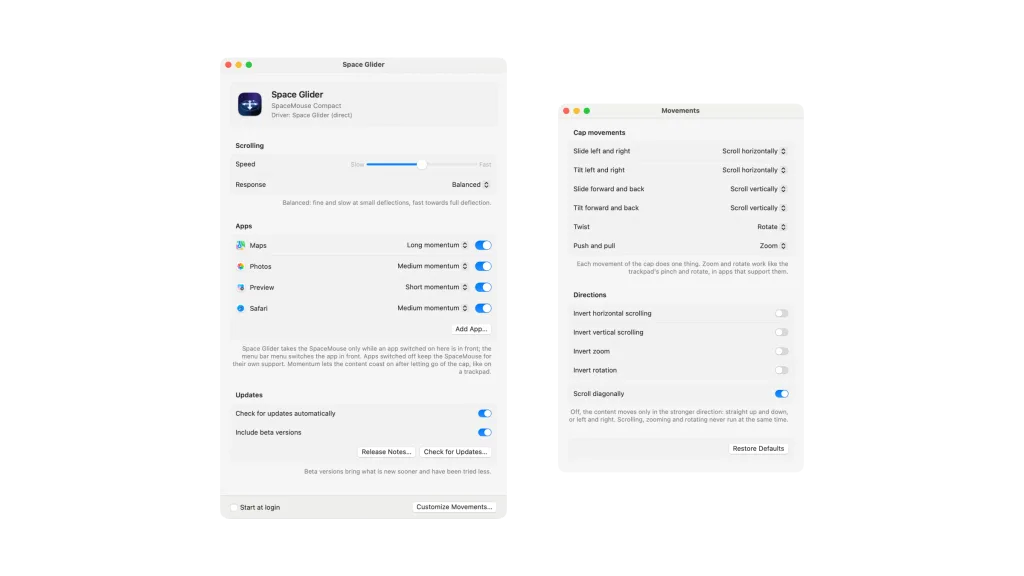
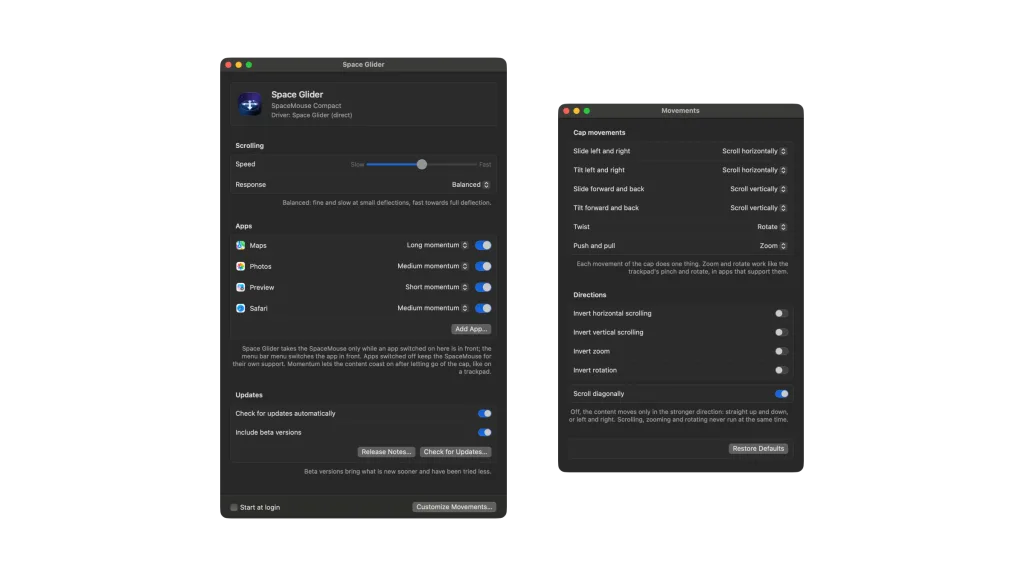
Space Glider makes a 3Dconnexion SpaceMouse scroll, zoom and rotate smoothly in the apps you choose, like a trackpad.
Space Glider turns a SpaceMouse into a trackpad without edges. Slide or tilt the cap, and the content under the pointer scrolls smoothly for as long as you hold it, the faster the further you deflect it. Let go, and it coasts on as after a swipe on the trackpad. Pushing and pulling zooms, twisting rotates.
Space Glider takes the SpaceMouse only for the apps you switch on. All others keep it, and apps with their own SpaceMouse support get it themselves, with and without 3Dconnexion's 3DxWare.
Space Glider lives in the menu bar; you set the speed, the response and the apps in its main window. It needs the Accessibility permission, speaks English and German and looks for new versions by itself.
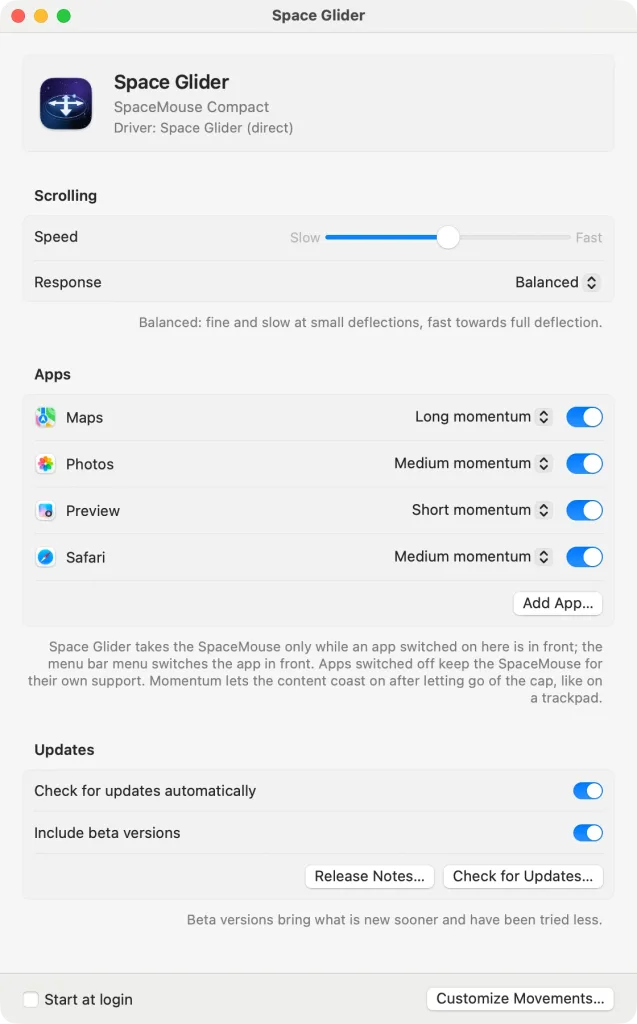
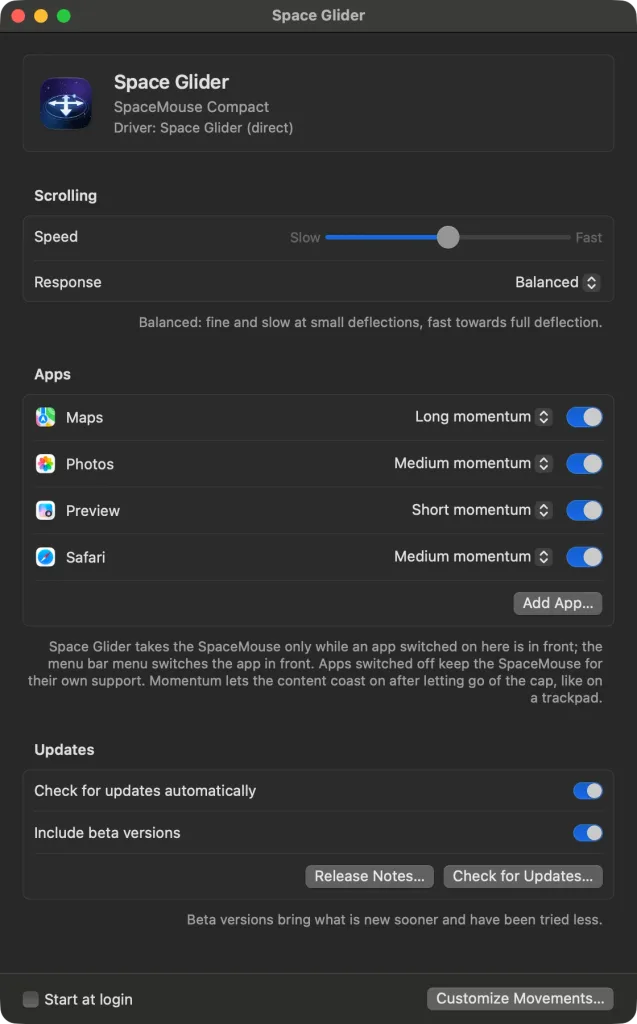
The pictures on this page were drawn by Space Glider itself, with made-up settings: a SpaceMouse Compact and the apps Safari, Maps, Preview and Photos.
Space Glider is in the works. Subscribe to the feed to hear about the first release.
Sliding and tilting the cap scroll: left and right horizontally, forward and back vertically. Space Glider produces scroll events like a trackpad's, smooth and pixel by pixel, for the window under the pointer, in every app that scrolls with a trackpad. As long as you deflect the cap, the content keeps moving, and the further you deflect it, the faster.
The “Speed” slider in the main window goes from “Slow” to “Fast” and applies to scrolling, zooming and rotating. The “Response” says how the cap reacts to small deflections:
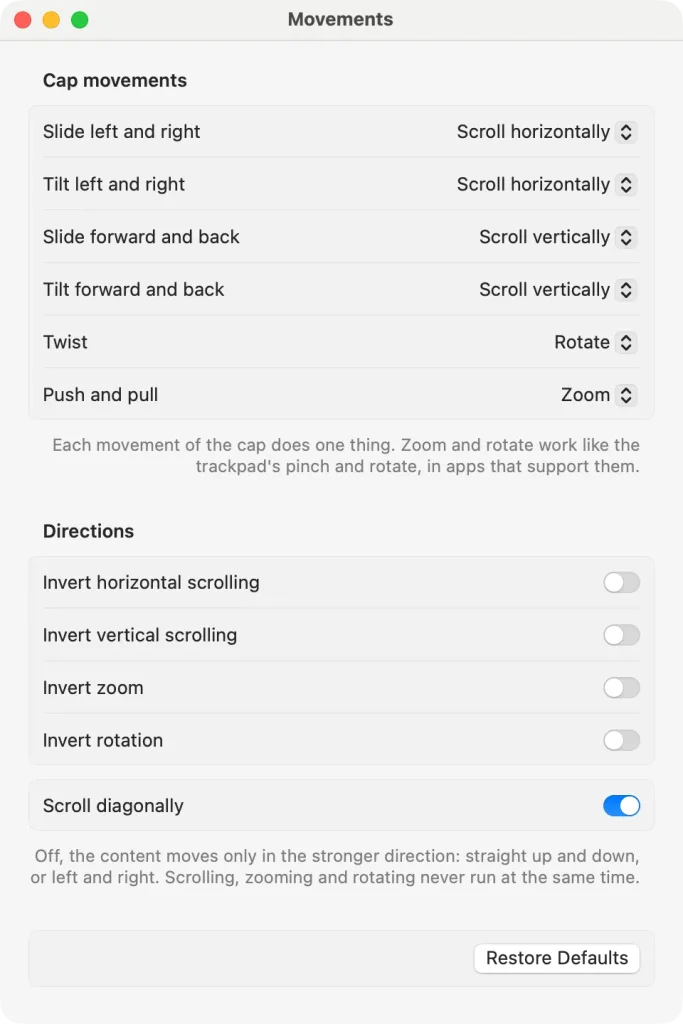
A slanted movement scrolls diagonally. Switch off “Scroll diagonally” in the “Movements” window, and the content moves only in the stronger direction, straight up and down or left and right.
Space Glider takes the SpaceMouse only while an app you switched on is in front. In the “Apps” list in the main window every app has a switch, and “Add App…” adds more. Apps switched off, and apps Space Glider does not know yet, keep the SpaceMouse.
Every app switched on has its own momentum: it lets the content coast on after letting go of the cap, like on a trackpad – “No momentum”, “Short momentum”, “Medium momentum” or “Long momentum”.
The menu bar menu is only about the app in front: “Use the SpaceMouse in …” switches it on or off, “Momentum” chooses its momentum. While Space Glider does not have the SpaceMouse, its menu bar symbol looks dimmed.
Apps with their own SpaceMouse support, Kugelblitz for one, get the SpaceMouse themselves, with and without 3DxWare.
Push the cap down and Space Glider zooms in, pull it up and it zooms out – like pinching with two fingers on the trackpad. Twist the cap and the content rotates, clockwise when you twist right, like rotating with two fingers. Both work in apps that support pinching and rotating on the trackpad.
Scrolling, zooming and rotating never run at the same time; each gesture ends cleanly before the next one begins. Zooming and rotating follow the same “Speed” slider as scrolling.
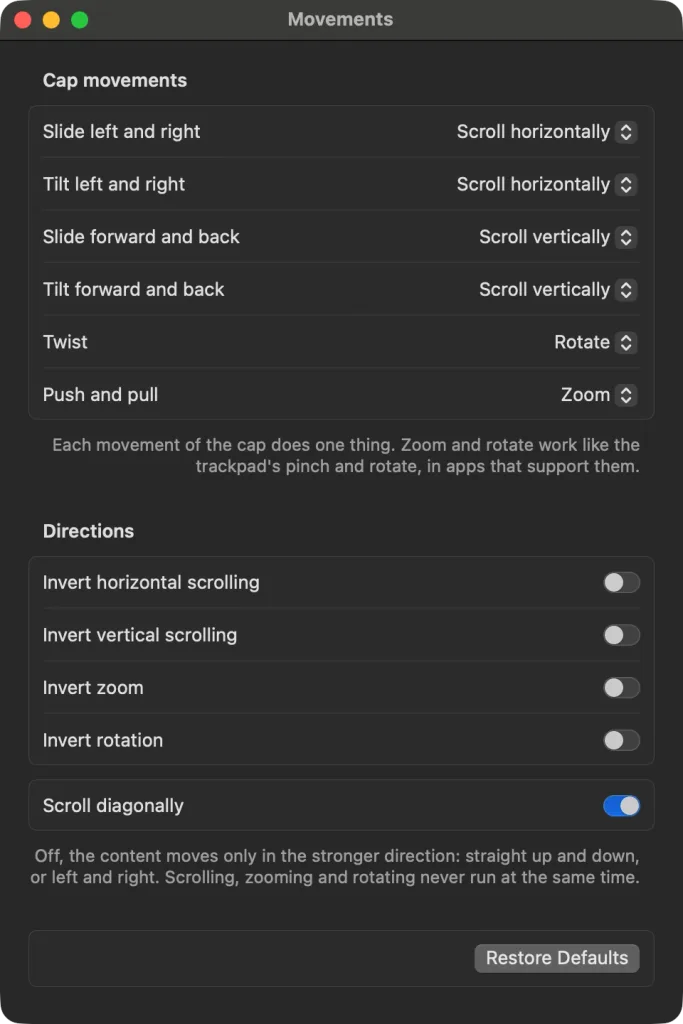
“Customize Movements…” in the main window opens the “Movements” window. There each of the cap's six movements has exactly one function, or “Nothing”. From the start:
Sliding and tilting scroll only in their own direction, pushing and pulling only zooms. Twisting can take any function, like a knob: clockwise is right, down and in. Under “Directions” you invert horizontal and vertical scrolling, zoom and rotation one by one. “Restore Defaults” resets the movements, the directions and “Scroll diagonally”; speed, response and apps stay.
The deflection sets the speed
Only in the apps you switch on
Pinch and rotate as on the trackpad
Each movement of the cap does one thing
With or without 3DxWare
At home in the menu bar
We can't find the internet
Attempting to reconnect
Something went wrong!
Attempting to reconnect